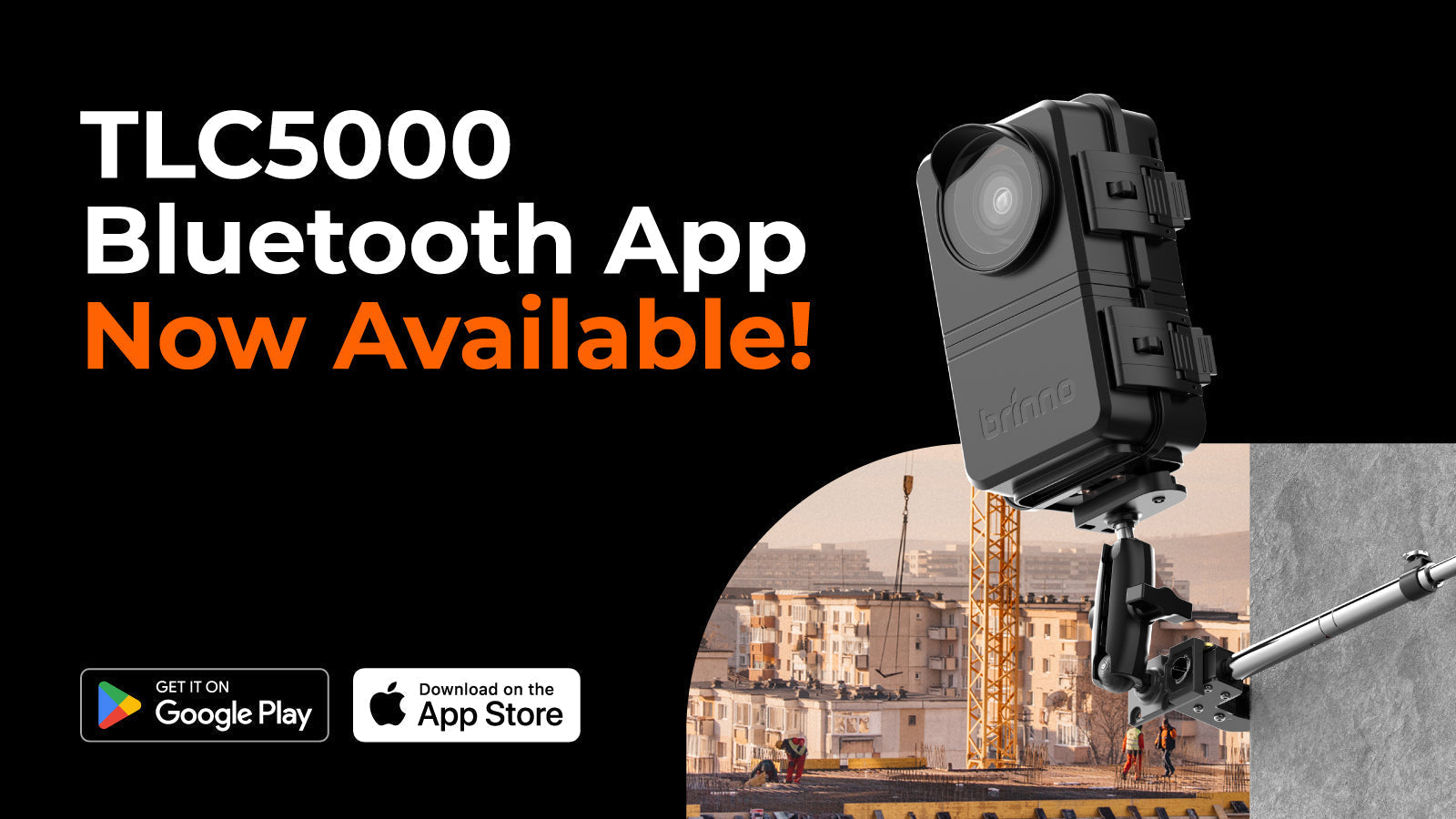

Una volta che la tua telecamera è connessa al Wi-Fi tramite la configurazione Bluetooth, la piattaforma Wi-Fi diventa il tuo hub operativo remoto. Qui BCC5000 si trasforma in un vero sistema time-lapse per cantieri senza preoccupazioni—ideale per progetti a lungo termine o lavori multi-sito.
Cosa il la piattaforma Wi-Fi è
La piattaforma Wi-Fi di Brinno è Sistema Multi-Telecamera, un'app web basata su browser elencata come Passo 2: APP operativa Wi-Fi nella pagina Helper BCC5000. È progettato per Controllo remoto Wi-Fi tramite il link fornito.

Quando usarlo
Usa il Wi-Fi quando ti serve:
-
Controllo remoto (non è necessario stare accanto alla telecamera)
-
Gestione progetti a lungo termine
-
Supervisione multi-telecamera (particolarmente utile su più sedi)
-
Controlli live, modifiche impostazioni e attività di manutenzione senza visite in cantiere
Cosa ti serve
- La tua telecamera deve già avere Wi-Fi configurato tramite Bluetooth (Il Passo 1 precede il Passo 2).
- Il tuo dispositivo di visualizzazione (telefono/tablet/laptop/desktop) deve essere connesso via Wi-Fi o LTE per poter raggiungere la piattaforma. (Questo è esplicitamente indicato nel flusso operativo Wi-Fi.)
Cosa puoi fare con il Wi-Fi (funzionalità principali)
1) Vedi connessione e ID della telecamera a colpo d'occhio
-
L'interfaccia Wi-Fi evidenzia l'ID della telecamera e se il dispositivo è connesso o disconnesso—utile per risolvere rapidamente problemi di segnale.
2) Visualizzazione Live per una verifica rapida
-
Attiva la Visualizzazione Live per monitorare ciò che la telecamera vede (utile dopo cambiamenti meteorologici, movimenti della gru o modifiche del layout del cantiere).
-
La Visualizzazione Live è pensata per controlli rapidi e solitamente non viene usata durante la registrazione.
3) Avvia/Interrompi registrazione da remoto
-
Dopo aver impostato il programma e l'intervallo, puoi avviare o fermare un progetto dalla piattaforma Wi-Fi—niente più salite su scale, aperture di custodie o pressione di pulsanti in cantiere.
4) Regola le impostazioni da qualsiasi luogo
-
La piattaforma Wi-Fi centralizza i controlli principali oltre a opzioni operative più approfondite, tra cui:
-
Programma (piano giornaliero/settimanale)
-
Intervallo di tempo (scegli o personalizza)
-
Configura Impostazioni come filtro anti-sfarfallio (linee guida sulla frequenza di alimentazione regionale), data e ora, e regolazione immagine/riproduzione
-
Dettagli della batteria (così puoi pianificare le visite di manutenzione in modo efficiente)
-
Gestione scheda SD (rivedi i file memorizzati, riproduci e gestisci lo spazio di archiviazione)
-
5) Aggiornamenti firmware OTA (un grande vantaggio in termini di comodità)
- Nell'area informazioni della camera della piattaforma Wi-Fi, puoi controllare la versione firmware attuale e aggiornare tramite OTA (Over-the-Air). Ciò significa che puoi mantenere le telecamere aggiornate senza doverle recuperare fisicamente o estrarre la scheda SD per gli aggiornamenti. Questo è uno dei maggiori vantaggi dell'operare via Wi-Fi per progetti lunghi e siti remoti.

6) Aggiungi altre telecamere
- La piattaforma supporta anche l'espansione del sistema: “Aggiungi Camera” di solito ti riporta al flusso di lavoro Bluetooth (perché il Bluetooth è il modo in cui ogni camera viene configurata e collegata correttamente).
Perché è importante
La piattaforma Wi-Fi è progettata per i flussi di lavoro reali nel settore delle costruzioni: visibilità remota, meno viaggi in cantiere, risoluzione dei problemi più rapida e manutenzione più semplice. Se il Bluetooth è il tuo strumento di configurazione, il Wi-Fi è il tuo cruscotto operativo quotidiano, particolarmente potente se abbinato agli aggiornamenti firmware OTA e alla gestione multi-camera.